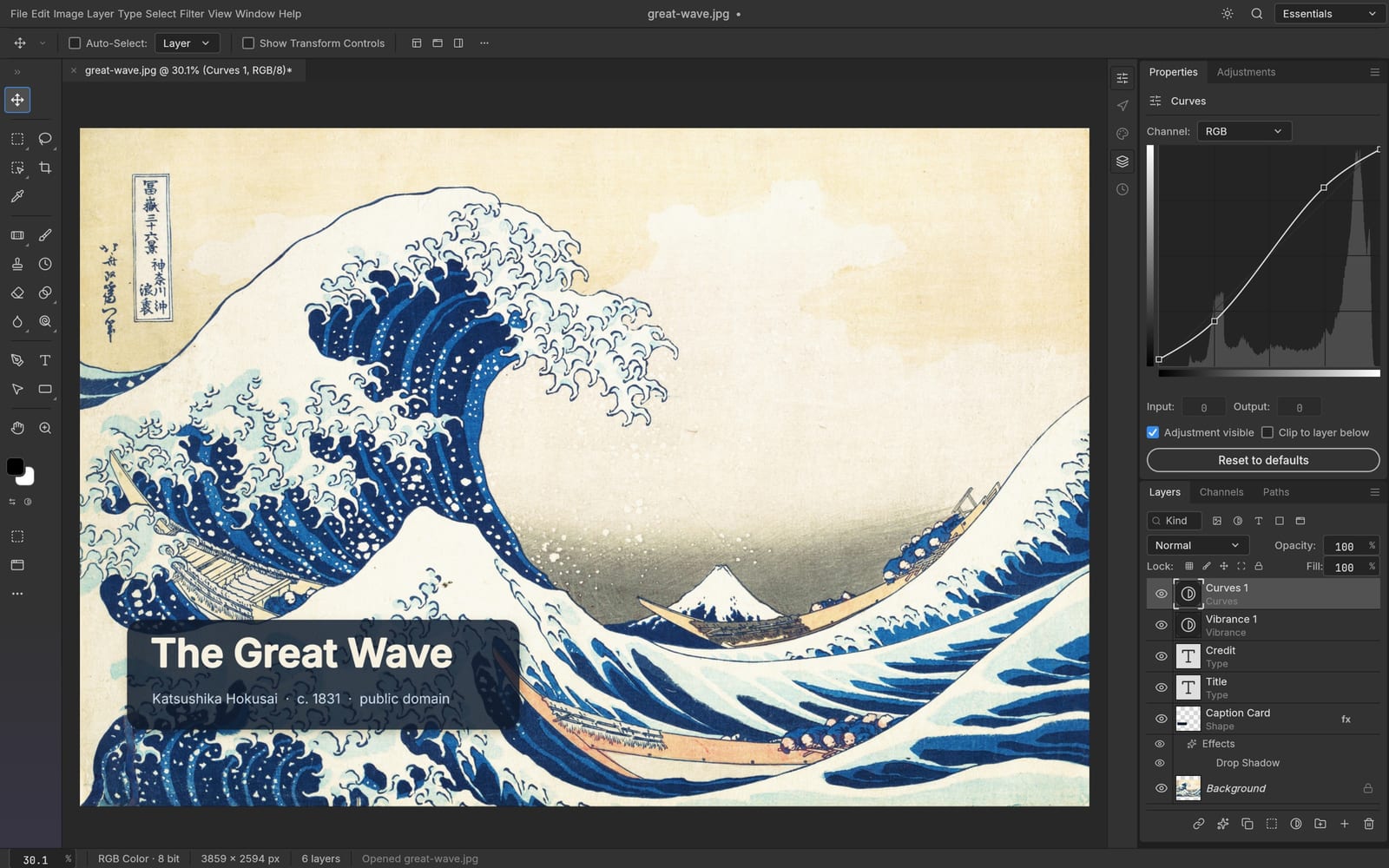
A good editor should let you concentrate on the picture. The photocraft workspace brings a canvas, tools and layer controls into one place, so a quick crop can grow into a carefully arranged composition. Start with a photograph, add a headline, separate the background from the subject, or assemble a simple promotional graphic. You choose how much detail the image needs. Familiar editing concepts make the first session approachable without flattening every creative decision into a single automatic effect.
Built on the open-source PhotoCraft engine
The foundation is the PhotoCraft project by storytold, an image editor written in Rust with layers, masks, type, vectors, brushes and PSD support. ArtCraft hosts its Web editor and connects it to your ArtCraft account and private saved-result storage. The photocraft service is independently operated; it is not the upstream project or Adobe. Desktop-only integrations described in the repository are not promised here. The published engine remains early software, so keep a local copy and check important documents after opening or saving them.
This page uses your ArtCraft account and private storage. Keep this editor tab open while signing in and until saving succeeds.
02
PhotoCraft · How to use
STEP 1
1. Explore photocraft freely
Open photocraft without an account and explore the editable example. Try layers, tools and the canvas, or open your own image. Editing is free. Google login or One Tap is only required when you save or export, with no subscription or credits required.
STEP 2
2. Open your starting image
Open a photograph or supported document in photocraft, then inspect its size and existing layers. Keep an untouched original nearby. Choose a clear purpose, such as a product listing, a portrait correction or a social graphic, before making several competing changes at once.
STEP 3
3. Shape the edit in layers
Build your photocraft composition with separate image and text layers. Use selections and masks to control where changes appear, then review the result at a useful zoom. Name important layers clearly so another editing session starts with a readable document rather than guesswork.
STEP 4
4. Save and check the result
Save or export from photocraft, then sign in for free if prompted. Your document stays open and saving continues automatically after login. Download the result and wait for its private cloud copy before closing the page. No credits or subscription are required.
03
PhotoCraft · Features
Upstream application example; browser feature availability may differ.
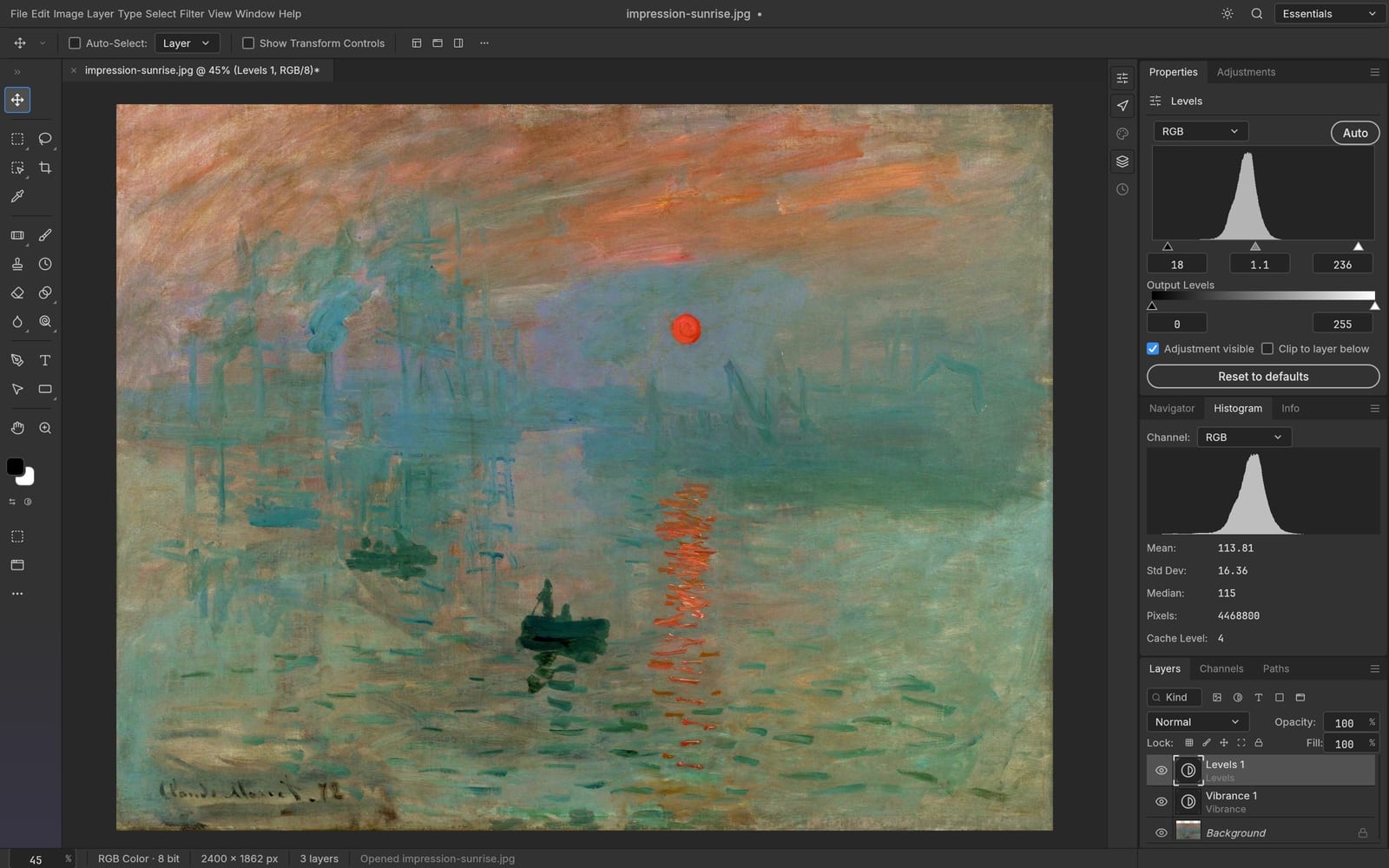
photocraft layers for changes you can revisit
Separate the photograph, background, headline and decorative elements instead of baking every decision into the same pixels. In photocraft, a layered workflow helps you move one element without rebuilding the entire image. Hide a variation, compare arrangements and keep the successful version organized. This is useful for a product banner that needs several crops or a social design that will receive another date or price. Preserve the editable document alongside your final image so the next update has a sensible starting point.
Upstream application example; browser feature availability may differ.
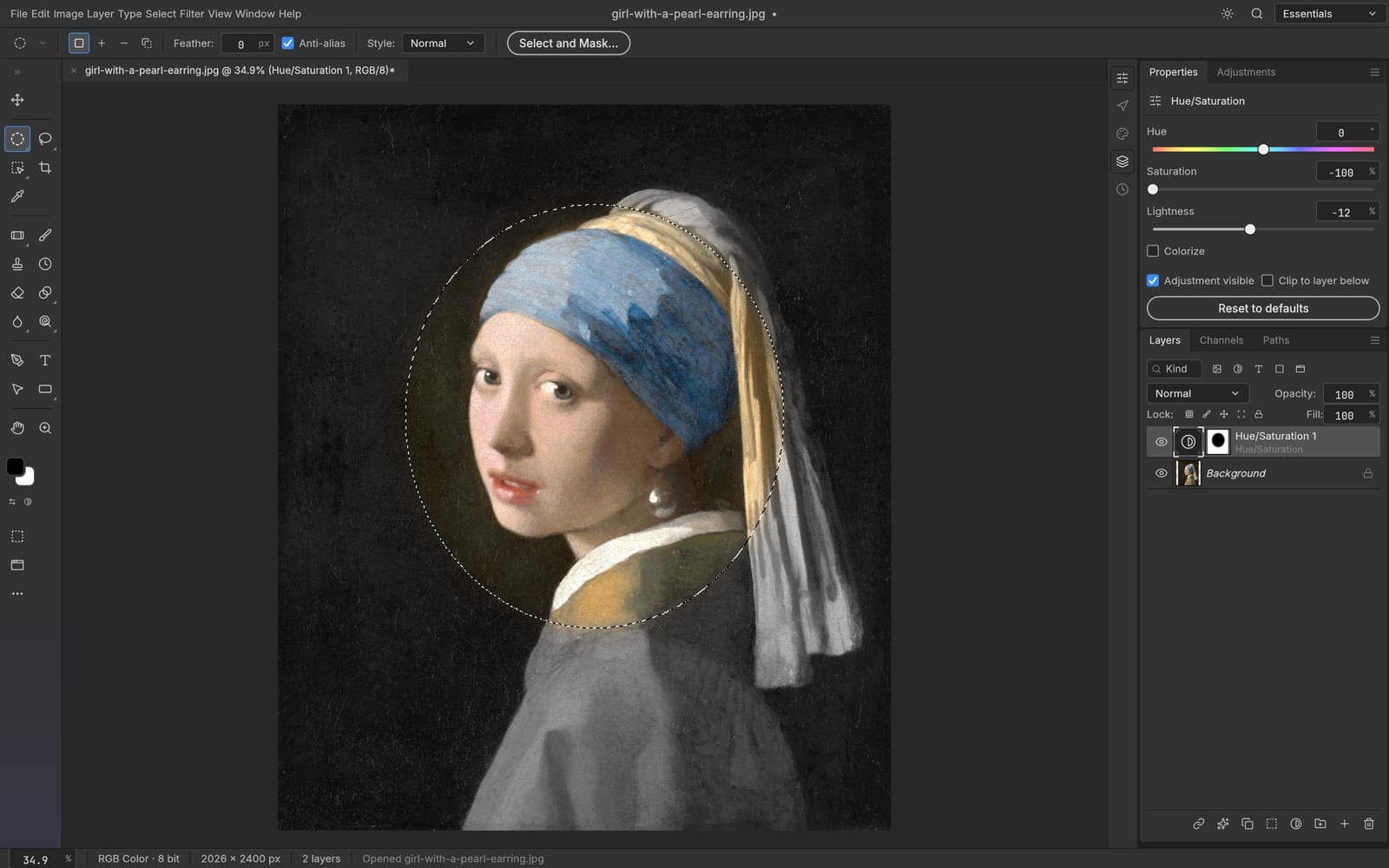
photocraft selections and masks with a purpose
An edit often needs to affect one region rather than the whole photograph. Use photocraft selection tools to define that region and masks to manage which parts of a layer remain visible. Work carefully around hair, soft edges and transparent areas; zoom in for detail, then zoom back out to judge the complete image. The upstream engine includes several selection methods, but results depend on the picture and the available Web build. Inspect the edge instead of assuming every subject will separate perfectly.
Upstream application example; browser feature availability may differ.
photocraft color and adjustment controls
Start with a believable exposure and a deliberate color direction. The photocraft engine supports adjustment layers and familiar color controls, allowing you to refine a composition while keeping its structure understandable. Compare changes against the original and avoid pushing every slider simply because it is available. A portrait may need restrained tonal corrections; a campaign graphic may need stronger contrast. When a document contains effects imported from elsewhere, check the rendered result and keep the source file before replacing a production asset.
Upstream application example; browser feature availability may differ.
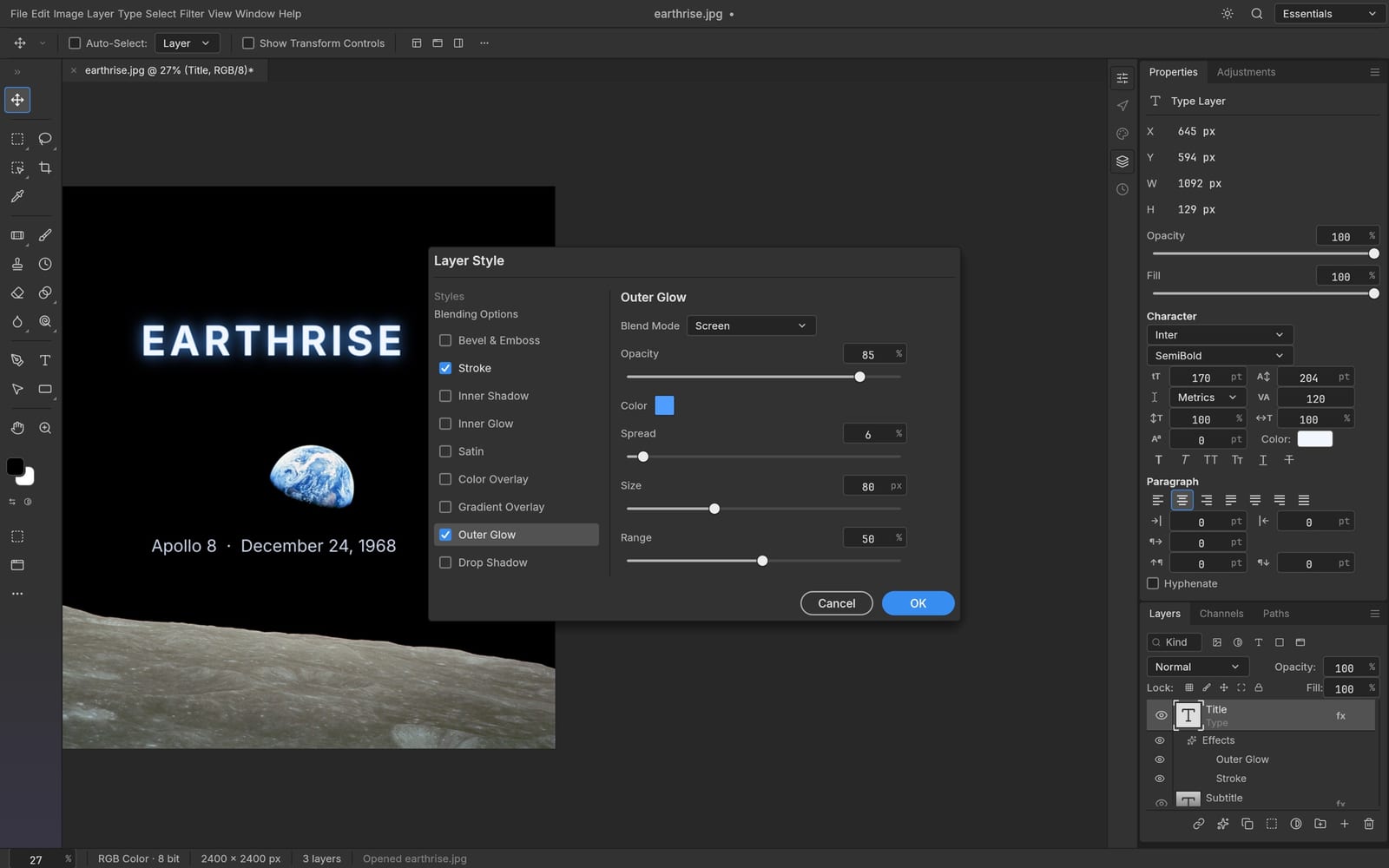
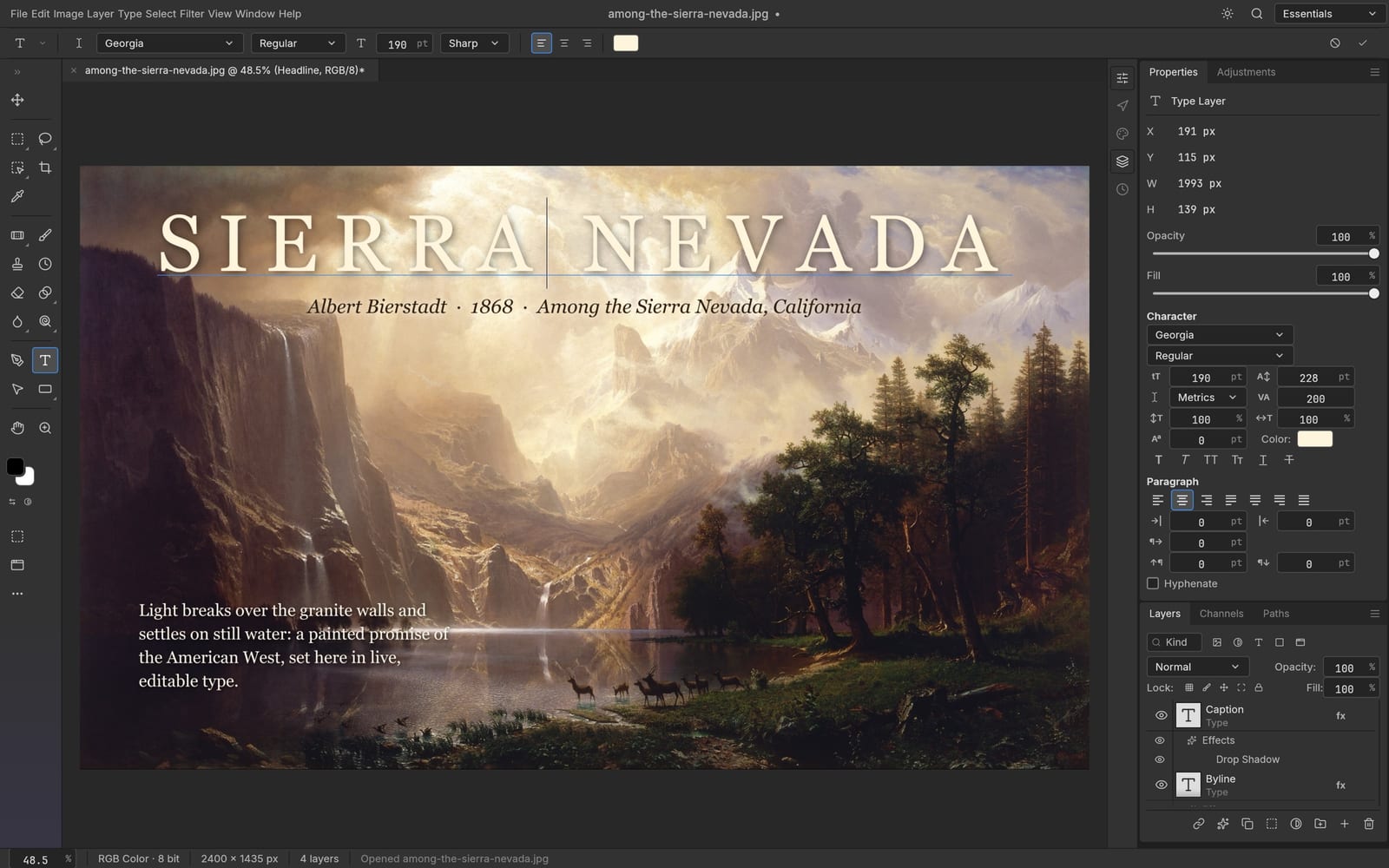
photocraft text that belongs in the composition
Give a headline its own editable layer and place it with the image rather than treating it as an afterthought. In photocraft, type and layer styling can help establish a clear reading order for a poster, thumbnail or announcement. Leave enough contrast behind small text, check spelling, and review the design at the size where people will actually see it. Font availability and document compatibility can affect the final appearance, so verify the exported file before sending a finished layout to somebody else.
Upstream application example; browser feature availability may differ.
photocraft PSD editing and practical exports
The open-source editor works with real PSD documents, giving photocraft a useful place in an existing image workflow. Open a layered file, make a focused change and save an editable result, or export a finished picture for another application. Complex PSD features may not reproduce identically in every editor, especially during an early release. Review text, masks and effects after a round trip. Saving an original copy and checking the output are small habits that protect a much larger amount of creative work.
Upstream application example; browser feature availability may differ.
photocraft saved results, ready for another session
Saving from photocraft creates a private library item and a zero-credit task record. Image outputs can show a preview; layered documents without a preview remain downloadable file cards. Your local download is still available, so cloud storage is a second useful copy rather than your only safeguard. If an upload fails, retry while the page remains open and watch for confirmation. Editing happens in the browser, while saving sends the result to this service. Only upload content you have permission to store.
04
Creator workflows
A product image with room for revisions
Start a photocraft product layout with the original photograph, a separate background and an editable caption. Prepare a clean square crop, then review a second composition for a wider banner. Keep prices and dates separate from the photo so the next campaign is a revision, not a complete rebuild. These are suggested workflows, not customer testimonials or measured performance claims.
A portrait edit that still looks like you
Use photocraft to make focused color, crop and layer adjustments while keeping a reference to the original portrait. Check natural skin tones and edges at several zoom levels. Stop when the image serves its purpose instead of adding effects indefinitely. Save an editable version and a finished image, with clear filenames that distinguish the two.
A social graphic you can update tomorrow
Build a photocraft announcement around a strong photograph and a short headline. Give the headline breathing room, inspect the mobile crop and confirm that important text survives export. Keep a layered master for future announcements. When you need a newly generated visual, use the separate AI tools, then bring the chosen image back for deliberate editing.
Manual editing and AI credits
PhotoCraft · Manual editing
Import, edit, preview, and save or export after sign-in: 0 generation credits. A zero balance does not lock this editor.
AI generation and AI editing
AI tools are separate paid operations. Choose a model and review the displayed quote before submitting. Saving an AI output does not cancel its generation charge.
Yes. Edit in photocraft without an account. Sign in to save and export for free, with no credits or subscription required. Optional AI image and video generation is priced separately; its cost appears before generation.
When does photocraft require an account?
Only when you save or export. Your photocraft account owns the saved private files. Login keeps your canvas, layers and editing history open, then continues saving automatically. Closing the login dialog lets you continue editing; your pending result stays here.
Can photocraft open and save PSD files?
The photocraft Web editor includes PSD support from the upstream engine. Compatibility depends on document features and the current release. Keep the original, inspect layers and text after opening, and verify the saved file before replacing important work.
Does photocraft upload every editing action?
The photocraft editor runs in your browser. Saving or exporting sends the resulting file to your private storage and creates a task record. Saving requires login. This service uses analytics and is not an entirely offline desktop application.
Where are photocraft saved results?
Look in Assets for photocraft images and document downloads. A saved file also appears as a completed, zero-credit record in the administrative task history. A document without a thumbnail still has a file card and a download action.
What if photocraft cloud saving fails?
Keep the photocraft page open and use its retry control. The local download remains useful while the upload is retried. Wait for a successful confirmation before closing the tab; large files and unstable connections can interrupt a cloud save.
Is artcraft.fast the original project?
No. This photocraft website independently hosts the open-source PhotoCraft Web release and adds account storage. The original project is maintained by storytold. Source links, attribution and license notices are retained, and this service is not affiliated with Adobe.
06
Start creating
Bring a photograph, a clear idea and a little room to experiment. Open photocraft above and begin with one useful change. Sign in for free when saving. Save the layered version, check the finished output and keep the result in your own library for the next creative session.
 ArtCraft